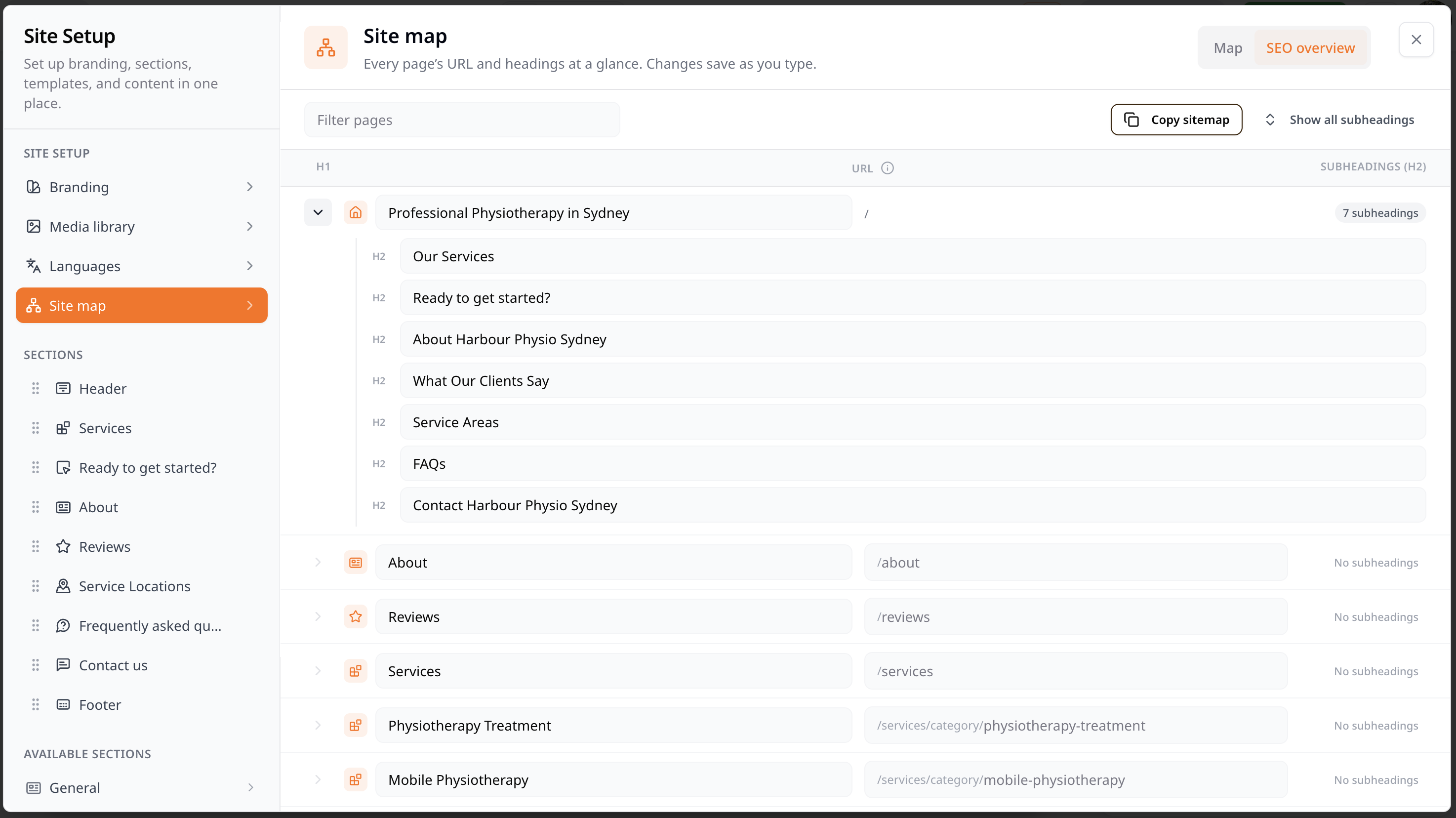
Edit page addresses, headings, and subheadings so customers can find and understand the right page.
Edit page addresses and headings
Use the page overview to manage page addresses, headings, and subheadings across your site.
Clear page addresses and headings help Google understand what each page is about. This can help your pages appear in searches related to their content.
The page overview shows page addresses, headings, and subheadings across the site.
Log in to your site at your-site.com/login.
After you sign in, click Edit your site > Open the site editor.
Open Site map, then select SEO overview.
Find the service category and edit the last part of its page address in the URL. field. Enter only the last part, such as physiotherapy-treatment.
Publish the site to make the new page address live.
This view shows each page address and its headings. Changes save as you type.
After you publish, visitors who use the old page address are sent to the new one.
Copy and share your page list
Copy a plain-text list of your pages, with subpages shown underneath, to share with a teammate or get feedback from an AI assistant.
In the page overview, click Copy sitemap to copy every page in the overview, even when a page filter is active.
Paste the list into a message or document to share it. For AI feedback, paste it into a chat and ask whether the pages are grouped clearly, the addresses are useful, and the headings are distinct. For example:
Review this list of site pages. Check that pages are grouped clearly, addresses are useful, and headings tell visitors what each page is about. Point out gaps and suggest improvements. Do not invent business details.
The list includes page addresses, main headings, Google result titles when available, and section headings. It does not include the full page text.
Note: This copied page list is not the file Flax sends to Google to help it find your pages. You can view the published page list atyour-site.com/sitemap.xml.