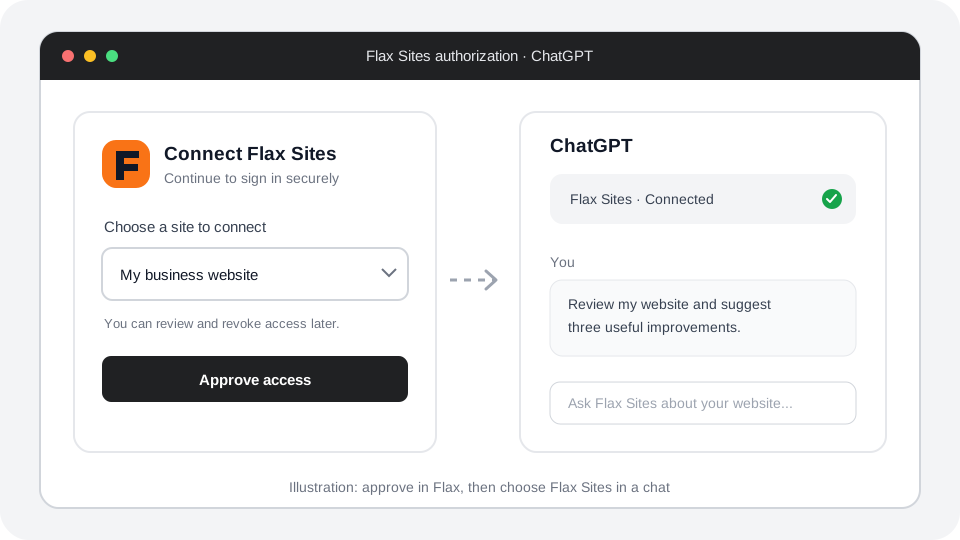
Overview
- ChatGPT Pro: connect Flax for read-only help, such as reviewing your site. Pro cannot use tools that edit it.
- Business, Enterprise, or Edu: use full MCP tools, including editing, when your workspace allows them.
- Start today: this personal Flax app does not need a public directory listing.
Prefer Codex? See Connect Flax to Codex.
Watch the quick walkthrough
Download the voiceover script for ElevenLabs (TXT)
Read the voiceover script
Here’s how to connect Flax to ChatGPT today, without waiting for a public Plugins Directory listing.
ChatGPT Pro can connect Flax for read-only help. It can review your website and suggest improvements, but it cannot edit your site. Business, Enterprise, and Edu workspaces can use full MCP tools, including editing, when the workspace allows them.
In ChatGPT on the web, open Plugins. Choose Personal, then Add, then Create MCP App.
Give the app a name you will recognize, such as Flax Sites. If you already have a Flax app, add Early Access to the name so the two are easy to tell apart. Paste the Flax server address into the Server URL box. Leave OAuth selected and check that the address is correct.
Choose Create. ChatGPT will open a Flax sign-in page. Sign in, choose your website, and approve the connection.
Start a new chat, open the tools menu, and select the Flax app name you chose. Try asking, “List the Flax sites I connected to this account.” You can then ask ChatGPT to review a published site.
On Pro, Flax can read your site and ChatGPT can suggest improvements. To use editing tools in ChatGPT, use a Business, Enterprise, or Edu workspace with full MCP access.
Before you start
This personal app lets early adopters connect Flax without waiting for public directory approval. OpenAI currently supports custom MCP apps on Pro for read and fetch actions. Full MCP access, including write and edit actions, is available on Business, Enterprise, and Edu. OpenAI does not list Free or Go for this personal-app setup. Plan availability may change.
You do not need to write code. If Create MCP App is missing, open Settings → Apps → Advanced settings and turn on Developer Mode. Pro users need Developer Mode for personal MCP apps. In a Business, Enterprise, or Edu workspace, an administrator may need to allow it first. See OpenAI’s guide to Developer Mode and MCP apps.
1. Create your personal Flax app
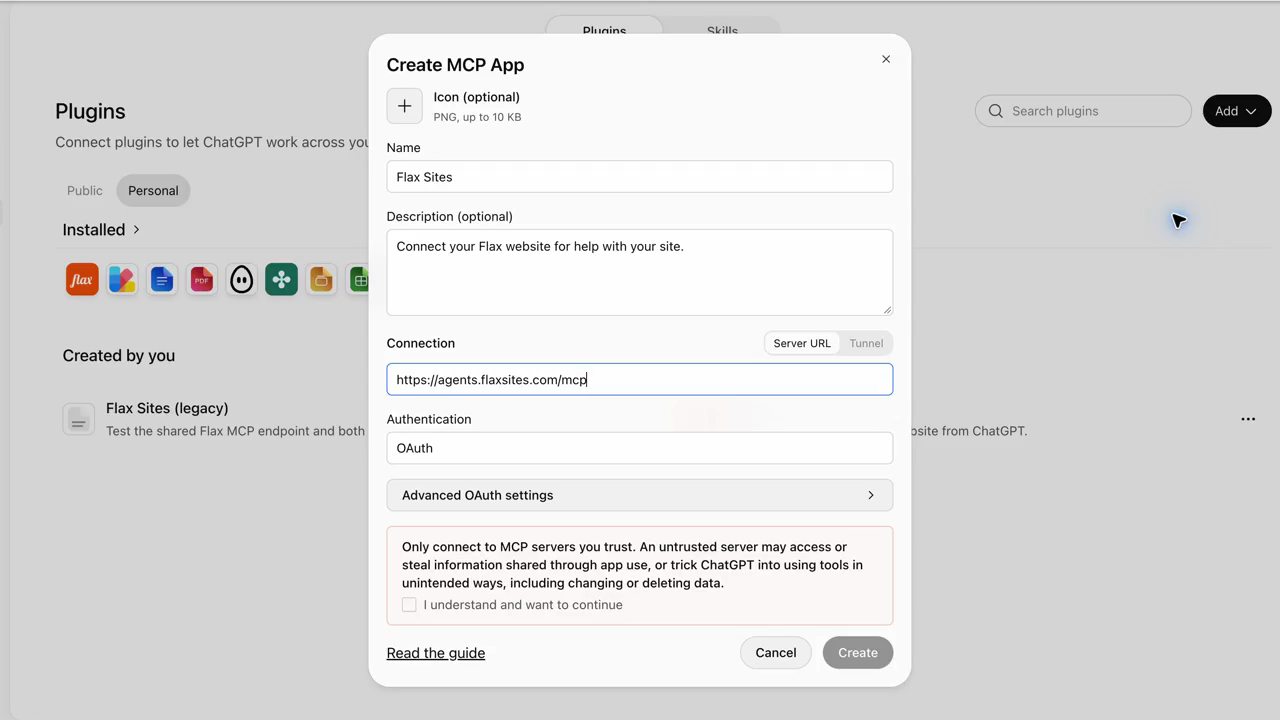
- In ChatGPT, select Plugins from the left menu. Choose the Personal tab, then select Add → Create MCP App.
- Give the app a name you will recognize, such as Flax Sites. If you already have a Flax personal app, use a distinct name such as Flax Sites Early Access. The description is optional.
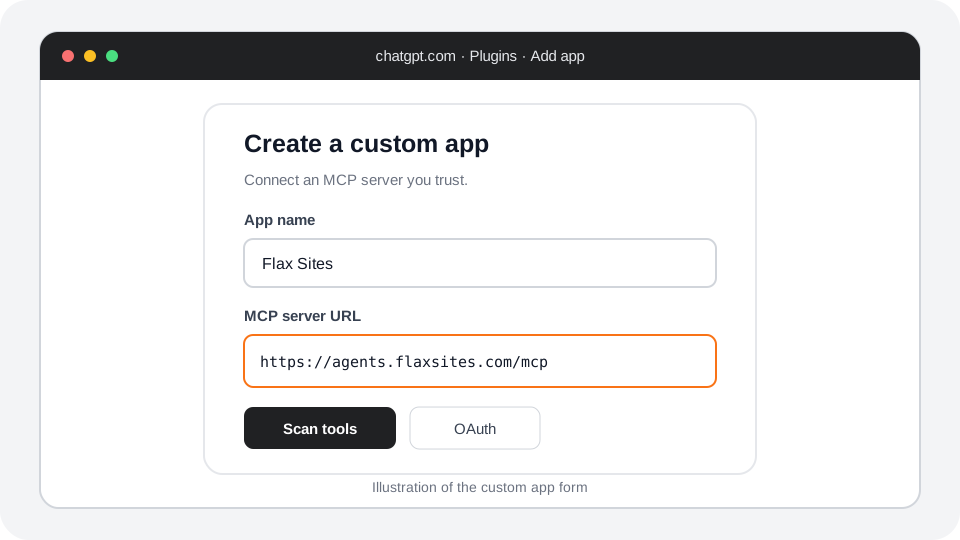
- Paste this address in the Server URL box:
https://agents.flaxsites.com/mcp - Leave OAuth selected. Check that the address is exactly
https://agents.flaxsites.com/mcp, then check the box to confirm you trust the Flax server. Choose Create.
ChatGPT warns that an MCP server may access information shared with it or take actions. Only connect to the official Flax address above. On Pro, Flax tools are read-only; Business, Enterprise, and Edu can use editing tools.
2. Sign in to Flax
- When ChatGPT opens the Flax sign-in page, sign in to your account.
- Choose the website you want to connect.
- Approve the connection and wait for ChatGPT to finish.
The Flax app will appear under your personal plugins. You can disconnect it later from your plugin settings.
3. Ask ChatGPT for help
- Start a new ChatGPT conversation.
- Open the tools menu and select the Flax app name you chose.
- Try asking:
List the Flax sites I connected to this account.
On Pro, Flax can read your site and ChatGPT can suggest improvements. Pro cannot make site edits through Flax. For editing tools in ChatGPT, use a Business, Enterprise, or Edu workspace with full MCP access.
If ChatGPT says it cannot open a site, check that the site is published and that its address opens in your browser, then try again.